Showing posts with label e-commerce. Show all posts

Friday, 16 January 2015

Unknown

Android 5.0 Lollipop Tips, Tricks and Hidden Features You Need to Know About

Android 5.0 Lollipop is one of the biggest updates released by Google to the Android software. The fifth version of Android has arrived with the Nexus 6 and Nexus 9, and is now rolling out to the other Android devices.
Android Lollipop comes with a number of new features that provide a big usability boost. While some of these features are pretty straightforward and easily visible, but there are others that only experienced Android users could know that they exist. Here are some Android Lollipop tips, tricks and hidden features you need to know about, so you’re ready for when Lollipop lands on your device.

Flappy Bird Clone Easter Egg

Google has always slipped in an Easter egg with a new release of Android and Lollipop is no exception. In Android Lollipop, the Easter Egg is a Flappy Bird clone. However, the bird has been replaced with the green Android robot.
To play the game, go to Settings -> About Phone and repeatedly tap ‘Android version’ till it changes to the Lollipop screen. Long press on the lollipop and the game will start. Simply touch the screen to start playing. Enjoy!
lollipop easter egg

Smart Lock

Android Lollipop has a new locking feature called ‘Smart Lock’ that will make securing your device easier than ever. It lets you bypass your secure lock screen when you’re in a “trusted environment.” This means that if you’re connected to a known Bluetooth device or a NFC enabled device such as smartwatch, car stereo, or even an NFC sticker, you don’t have to bother entering your pattern, PIN, or password.
To turn this on, go to Settings -> Security -> Smart Lock and set which Bluetooth devices are trusted.
android lollipop smart lock

Screen pinning

To take security to another level, Google has added a new feature called “Screen Pinning” that allows you to pin the particular screen to your Android device.
By enabling this function, no other setting or app can be opened except the pinned screen.This could be useful when you are in a situation to handover your mobile to your friends or unknown persons.
To enable screen pinning, go to Settings -> Security and toggle ‘Screen Pinning’ ON. Next open the screen you would like to pin, press the ‘Overview’ (formerly multitasking) button, scroll up and tap the pin icon on the bottom right of the open applications.
To unpin an app, simply long press the ‘Back’ and ‘Overview’ buttons simultaneously.
lollipop screen pinning

Priority Notifications

When it comes to alerts and notifications, Android 5.0 Lollipop has a new priority mode, which lets you control how you receive notifications. It is similar to the ‘Do Not Disturb’ mode in iOS 8 that lets you silence your phone at a specified time each day so you won’t be disturbed.
You can also select which contacts are allowed through the notification blockade. To make use of the priority mode, go to Settings -> Sound & notification > Interruptions.
android lollipop priority notifications

Battery Saver

Battery saver is one of the best new features of Android Lollipop. When enabled, it will turn off vibrations, cuts off background data and reduces brightness. You can can enable it manually or set it to automatically kick in when your battery is at 15% or 5%. You’ll know it’s working when the status bars turn orange-red. To set up battery saver, go to Settings -> Battery -> tap the ‘Menu’ button.
android lollipop battery saver

Multiple Users

It’s now possible to set up multiple users on Android. There are three types of accounts that you can set up on Lollipop. First the user account, which has full access to settings and apps. Second, the guest account, which will not record or save anything that anyone will do in this account, so you won’t have to worry about your configurations being messed up. Finally, there’s the profile account, which lets the owner restrict how the device is used – disabling certain apps for example. You can quickly add new accounts by taping the profile icon in the top right-hand corner of the lock-screen, or by going into the main settings menu. If you want to add restrictions and manage each account, go to the main settings menu and select ‘Users’.
lollipop multi users

Flashlight

There is also now a built-in flashlight function in Lollipop. With the feature, you will not need to download a third party application anymore for it. The flashlight is found in the notifications bar. Just swipe down the notification area from the top of the screen with two fingers then tap ‘Flashlight’. Please note that this app will only work if your device has an LED flash alongside its camera.

Search Settings

Android lollipop includes a new settings search function that let you specifically search the settings menu. When you go to the Settings app, you’ll see a new magnifying glass search icon in the top right. It appears on most pages within the Settings app.
To find what you need, simply tap the magnifying glass in the top right-hand corner in the settings menu and type what you’re looking for. A list of relevant results will then appear as you type.

Tap and Go

Android Lollipop also makes it easier to migrate content from one device to another by including Tap & Go. With this feature, you will now be able to quickly transfer all data backed up on your Google account from your old phone including apps and its data.
“Tap and Go” uses NFC to pair two devices and use Bluetooth to send over all the details of what your old phone should have installed over to the new phone.
android lollipop: tap and go

Tap to Wake

Tap to wake is another useful feature Google’s implemented on the Lollipop. Instead of using the power button, you can now simply double tap the screen to wake up your device.


Read More

Tuesday, 8 April 2014

Unknown

how to hack any email password using backtrack


Backtrack is the new Penentration testing OS, freely distributed by Linux, Backtrack 5 RC3 has many Hacking tools with new 45 fixed Bugs !!

# Now, How to hack any E-mail ID, Password using Backtrack


First of all find your BT IP to create server of Tabnapping attack

>> go on > Terminal (Command Box) > type  ( ifconfig ) and hit Enter and Copy your I.P >>> as shown in Image !!


This Hacking trick is called as a Tabnapping Attack it is same as Phishing but without Hosting your files.

# Let's start Hacking !! start your BT go on > Applications >  Exploitation Tools > Social Engineering Tools > Social Engineering Toolkit > set


#  Now you will see 'set' attack has started 


# Select option 2 (Website attack vectors) from the menu, type 2          hit Enter. as shown in the Image !!


# Select option 4 (Tabnapping Attack Method) 


# Again Select option 2 ( Site Cloner)


#  Paste your I.P address you have copied in step 1 & Hit Enter 
    Now it will ask for website you want to clone (I mean Phish)
    
for eg. Enter www.facebook.com again hit Enter !!


# After Entering IP and Site it will Clone that website and it      will show as shown in Image >>


# Hit Enter to <return> to continue


It will show you successfully message like this >>


After all your Tabnapping Attack is ready !! give your server IP
to your victim like this https://YOUR IP HERE/
& when your victim's open this address in his browser so he will see page something looks like this >>>>>>


# After all if your victim will login through this page he or she will be get Hacked !! like this >>>>

# Well !! now you can see in the above image how Tabnapping attacks are used to hack any E-mail ID Password.........


NOTE : THIS IS FOR EDUCATIONAL PURPOSE ONLY !! I M NOT RESPONSIBLE FOR ANY TABNAPPING ATTACK DID BY ANY READER :)
Read More

Friday, 28 March 2014

Unknown

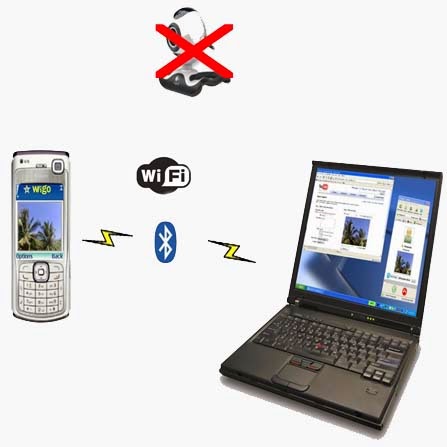
How to use Mobilecamera as a webcam

Dear readers today I am going to tell you How To Use Mobile Camera As A WebCam


Step1:-     Install Windows [EXE] (SmartCam.exe on your PC and Install)

Step2:-     Install Smartcam on your Mobile (Symbian S60 2nd Edition [SIS], S60 2nd Edition, JME [JAR], Windows Mobile [CAB], Android [APK]

Step3:-     Start up SmartCam on your PC and go to >>> File >>> Settings and check your connection and proceed >>> next step.

Step4:-     Start SmartCam on your phone and go to >>> Options >>> Connect and it will ask you for server name and you need to type your PC IP address or your system name


f YOU don't know your IP address then,

>>> go to RUN >>> type CMD >>> type ipconfig
 "OR"
>>> go to Google >>> type "my ip address".
Read More

Thursday, 6 February 2014

Unknown

Top 10 Web Hosting Companies in India

Most of the buisness whther a small sacle buisness or a large firm or group of Industries is going online these days thorugh websites. It has always been a question that where should i host my website to get the best available service on the net.

Here, I am giving a Complete list of top 10 web hosting providers in India which are reliable and trusted by many customers across the World.


Web Space Unlimited
Email Accounts Unlimited
MySQL Databases Unlimited
Free Domain Name
Free Website Builder tool
Anytime Money Back Guarantee
$100 Free Google Adwords Credit


99.9%


$20.14
per year


2


top web hosting companies
 
 
Web Space 100 MB
Data Transfer 1 GB
MYSQL(DB & Space) Unlimited
20 Email addresses
30 day MoneyBack Guarantee. 


99.9%


BigRock Review

Bigrock Coupons

Rs.139
per month 
best web hosting providers india


3


Unlimited Disk Space & Bandwidth
MySQL (DB & Space) Unlimited
Shared SSL Certificate
Free Site Builder
Email Accounts Unlimited
45 days Money Back Guarantee.


99.9%


Rs. 177.77
per month
web hosting companies bangalore


4


cheap web hosting


Web Space 500 MB
10 Email addresses
Data Transfer 5 GB
FTP Accounts 2
Free Website Builder tool
Free Domain Name


98.9%


HostingRaja Review


Rs. 99
per month
mumbai web hosting companies


    5


best web hosting sites India


Web Space Unlimited
Data transfer Unlimited
MYSQL(DB & Space) Unlimited
Unlimited Email addresses
45 Days Money Back Guarantee.
Free Website Builder tool


99.9%


ZnetLive Review 


Rs. 239
per month
hosting services


     6


Web Space Unlimited
Email Accounts Unlimited
MySQL Databases Unlimited
Free Domain Name
Free Website Builder tools
30 days Money Back Guarantee
FTP Users & SubUsers


99.9% 


$3.15
per month


        7


Web Space Unlimited
Email Accounts Unlimited
MySQL Databases Unlimited
Free Domain Name
Free Website Builder tools
Anytime Money Back Guarantee
FTP Users & SubUsers


99.9%


Bluehost Review
 

$3.95

per month


8
 
list of top web hosting sites


Disk Space 10000 MB
MYSQL(DB & Space) 50
Email addresses 50
Free Website Builder
30 Days Money Back Guarantee.


99.9%


Rs. 91.58
per month  


9


Web Space 5GB
Data transfer 20GB 
MYSQL(DB & Space) Unlimited 
Unlimited Email addresses 
30 day Money Back Guarantee 
FREE Website Builder tool. 


 98.9%


Hosting.india Review


Rs. 58.25
per month  


10
 
top 5 web hosting sites india 

 
Web Space 1 GB
Data transfer 5GB
MYSQL(DB ) 1
Unlimited Email addresses
FREE Website Builder tool


98.9%


Rs. 107.91
per month 

 
Read More

Friday, 18 October 2013

Unknown

57 ways to increase traffic on your blog/website

Some of these tactics are more effective and direct than others but collectively implemented can create long lasting and organic growth path for your blog.
    http://www.jeffbullas.com/wp-content/uploads/2013/08/57-Ways-to-Boost-Your-Blog-Traffic-v2.jpg
  1. Build a large following on Twitter
  2. Automate the sharing of content on Twitter. (you cannot scale if you don’t do this)
  3. Link to your blog on Twitter in your profile
  4. Increase your likes on Facebook
  5. Link to your blog on Facebook
  6. Share your post (including links to it) on Facebook
  7. Build an email subscriber list from day one
  8. Host a webinar (you can capture many emails when you run a webinar)
  9. Create and publish great content
  10. Make it easy for people to share your content with a Twitter retweet button
  11. Ensure you have a LinkedIn sharing button (there are over 230 million users there)
  12. Include a Google+ sharing button even if you don’t use it very much (over half a billion people there!)
  13. Facebook sharing button is a must
  14. Make it easy for people to share your content with a Pinterest sharing button
  15. Provide an incentive for people to subscribe to your blog by offering a free ebook in exchange for their email address and name
  16. Place the email subscriber box in a prominent position (top right or even in the top banner)
  17. Include multiple locations for people to subscribe
  18. Include an RSS feed option
  19. Link to your blog from your YouTube videos and channel 
  20. Make your blog easy to read (this will keep them loyal and bring them back)
  21. Write the best headlines you possibly can
  22. Guest blog on larger blogs in your industry
  23. Comment on other bloggers articles
  24. Reply to comments on your blog posts
  25. Interview the influential bloggers in your niche and category
  26. Obtain testimonials from influencers in your industry who have a strong social media presence
  27.  Ensure your blog can be easily read on mobile devices
  28. Optimise for search engines by using an SEO plugin such as WordPress SEO (Also known as Yoast)
  29. Write sub-titles with keywords in posts to help your SEO
  30. Improve your blogs search engine friendly content by including key words in images
  31. Publish new articles regularly (at least once a week)
  32. Write long form content that will be a resource for readers (they will link and bookmark it for future reference)
  33. Place a Facebook ad that drives traffic to your blog (could be an offer of free premium content)
  34. Advertise on Twitter with “Promoted Accounts”
  35. Provide links to archives on your blog
  36. List your most popular posts (this is a default WordPress feature)
  37. Use an SEO friendly online publishing platform like…”WordPress”
  38. Use a simple design that profiles your content and highlights your focus
  39. Include “prominent” social media sharing buttons placed at the top of your articles (floating buttons are good too)
  40. Have your top social media channels displayed in a prominent position so people can easily follow you
  41. Share other top bloggers content on Twitter and let them know you have shared with an @topblogger mention
  42. Copy and emulate the strategies of top bloggers
  43. Write a great introduction that is compelling and draws readers in
  44. Engage with your readers so that they want to come back and become loyal fans
  45. Write a blog post that highlights the best bloggers in your industry
  46. As you build credibility display your awards, wins and social proof in a prominent position
  47. Link to your blog in your email signature
  48. Join Facebook groups and participate
  49. Create a Google+ hangout for a hot topic in your industry and promote it
  50. Participate in LinkedIn groups
  51. Create some controversy that attracts attention
  52. Submit your top posts to Reddit
  53. Publish articles on Stumbleupon
  54. Make yourself available to speak
  55. Have a business card for your blog
  56. Take photos with Instagram (over 130 million registered users there) and share them on Facebook and Twitter
  57. Include multimedia in your articles to broaden your blogs reach. Videos, infographics, podcasts and Slideshare presentations are sometimes preferred over learning in a text format.
I hope this will help you a lot..please pass your comments if any in the below section.
Read More